

michael
Members
-
Joined
-
Last visited
Everything posted by michael
-
Ok we will have to arrange to go there and try that thanks
-
Sorry yes that seem right I thought the 485 was the plug cable but it is 485 connection twisted pair
-
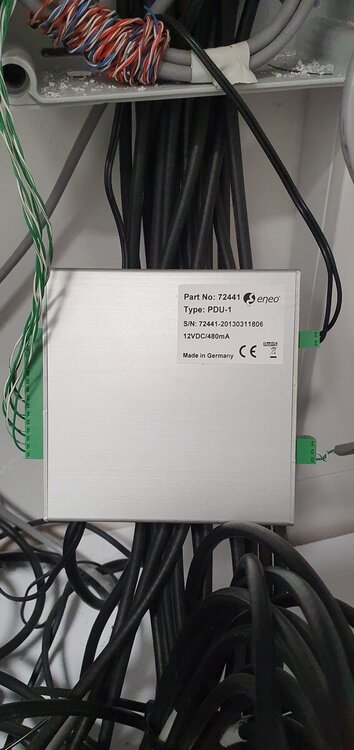
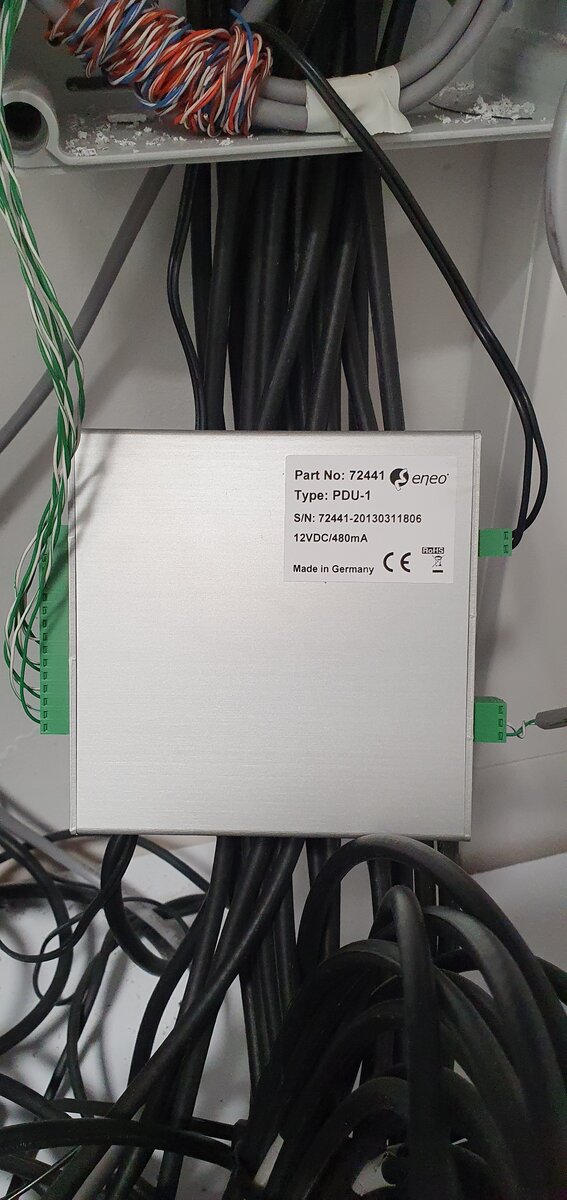
Don't know looks like some sort of controller for something that's all I know never seeing any of these make units before I have no clue of what could be wrong
-
The keyboard is twisted pair straight to the PDU-1 no other connections nor in DVR just the keyboard to PDU-1 unit that is the only connections checked all terminations in keyboard and PDU-1 all are good ain't checked in the cameras this unit control 6 ptz cameras and all 6 have same issues
-
Rs485 connector ain't connected to anything just a twisted pair going to the PDU-1 unit
-
we have a eneo ptz keyboard KBD-2 and the ptz cameras one minute it is over reponsive and the camera just keeps going round with no control to stop apart from gentle touches on the joystick to try to get it to stop rotation and other times camera rotates very slowly then to stop have to hold joystick in one direction to stop this then goes out of control could this problem be with the KBD-2 or the PDU-1 unit that the keyboard is connected to this is the first time i've seen this kind of unit in all the years i've done cctv. any help would be appricated very much as to what the cause of this problem could be and what we would need to do to rectify this problem for future issues.
Important Information
By using this site, you agree to our Terms of Use.