elecbob
Members
-
Joined
-
Last visited
Never
-
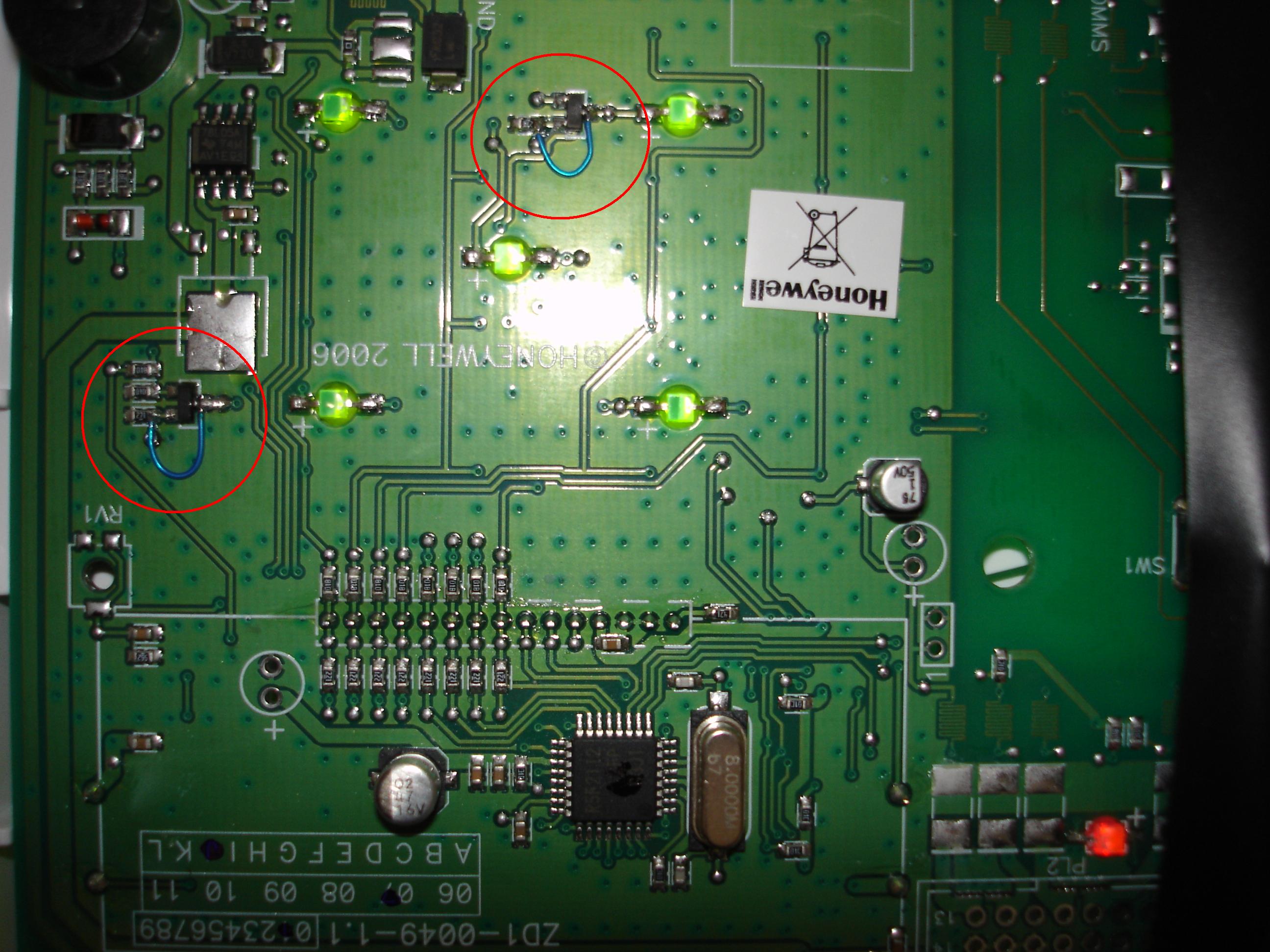
Hi, Thank you Secware_Tech6 and Ravis for all your help and suggestions. I have now linked out the collector and emitter of the two LED control transitors (blue wire links on attached photo). Now in good books with my better half who prefers the permanently illuminated keypad!!. Thanks again to all. Bob.
-
Hi Elaine, Thanks very much for the information. I guess we got used to the previous illuminated keypad, as it is positioned in a darkened area and is a help when initially pressing the keys. If there had been a simple way of enabling it we would have given it a try. Regards, Bob
-
Hi, System ADE Poly Gen4 with LCD keypad Is there any way in which I can permanently enable the LCD and Keypad backlight on the Accenta Gen4 LCD Keypad. The current default state is that they illuminate for about 30 secs following a keypress. My previous ADE system (LED Keypad) had backlit buttons on all the time which I found quite helpful. Bob